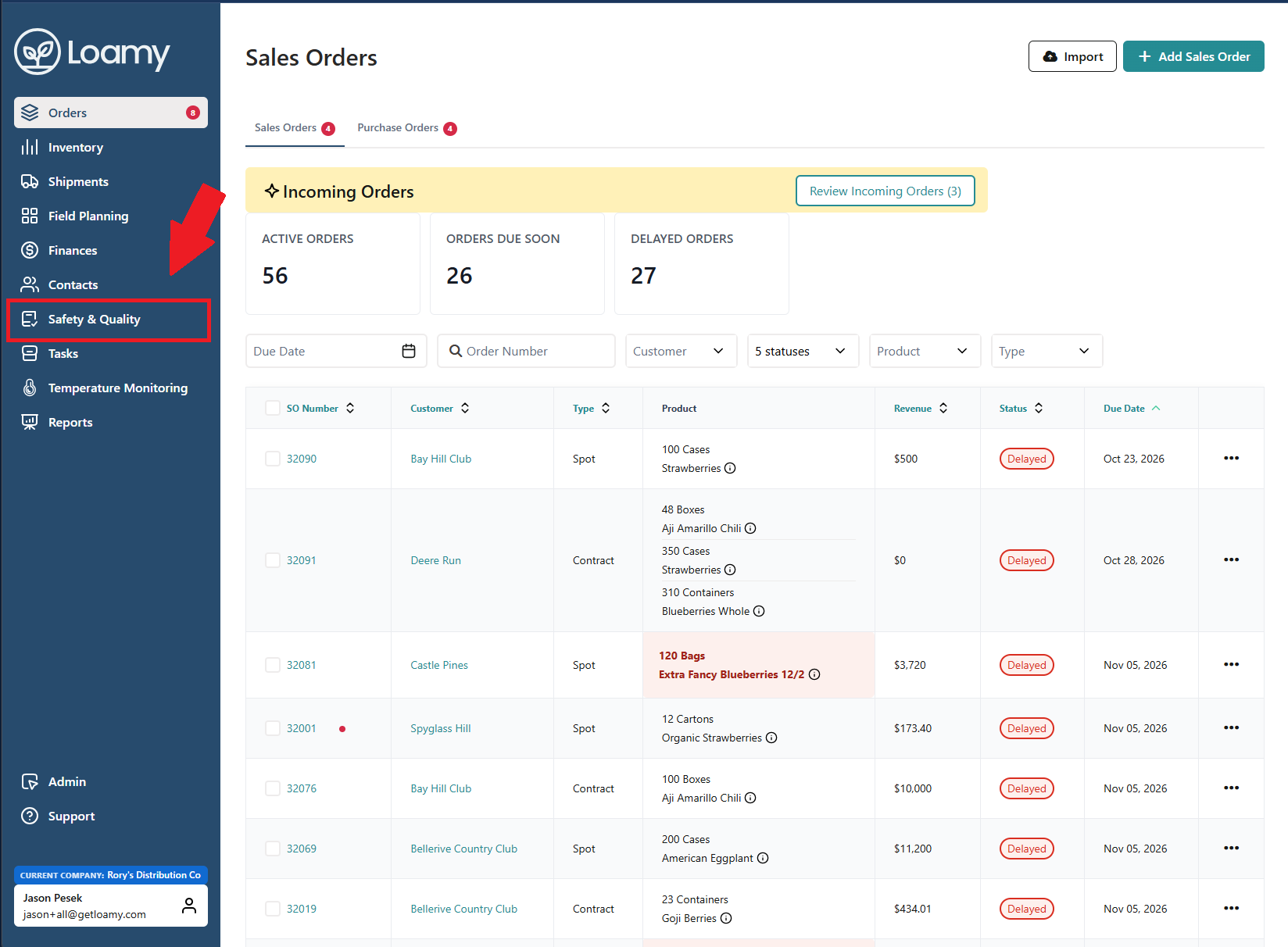
1. In the Loamy dashboard, navigate to Safety & Quality on the left-hand navigation.
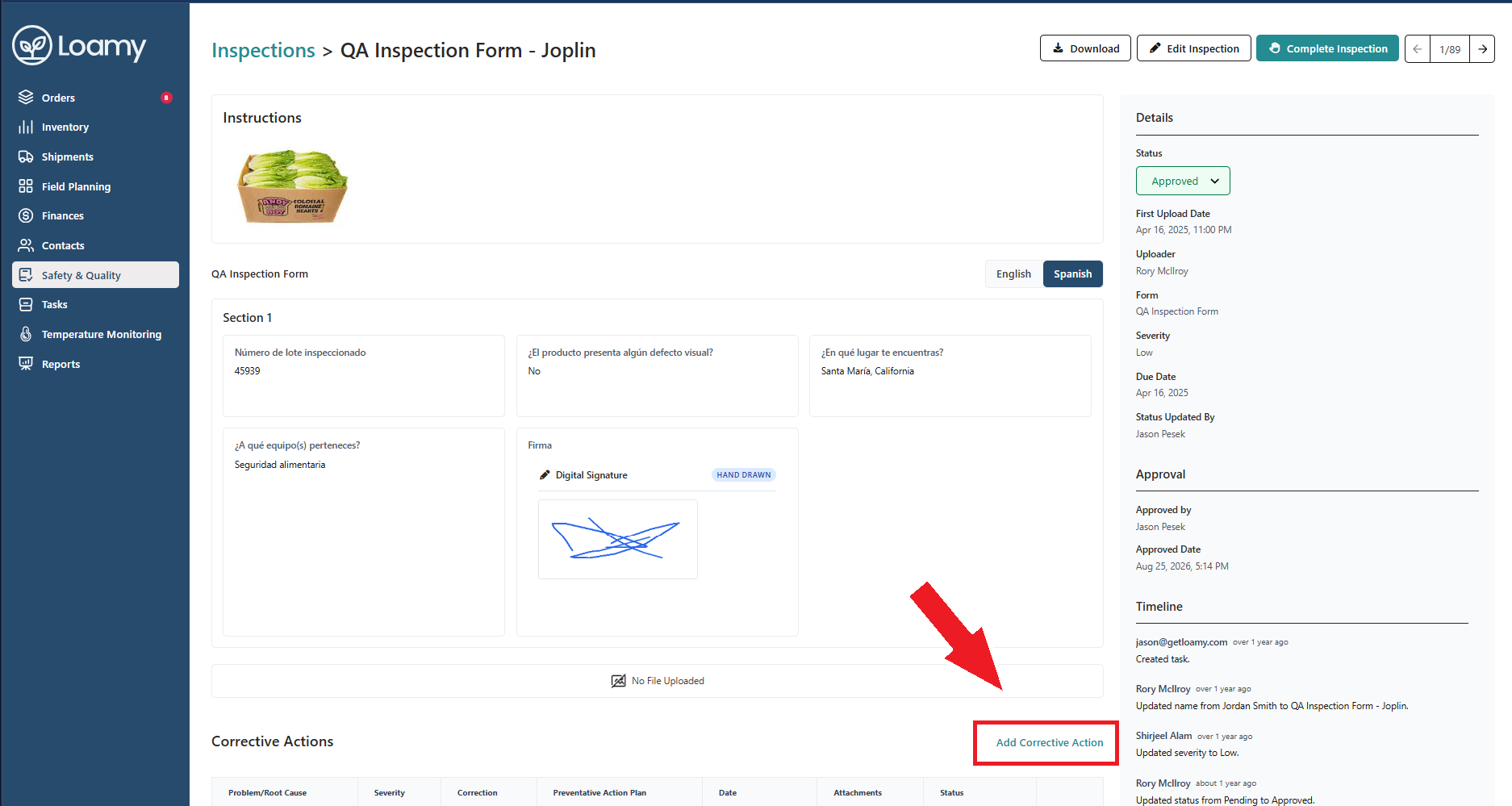
2. Select the task you need a ask a corrective action for. Select Add Corrective Action.
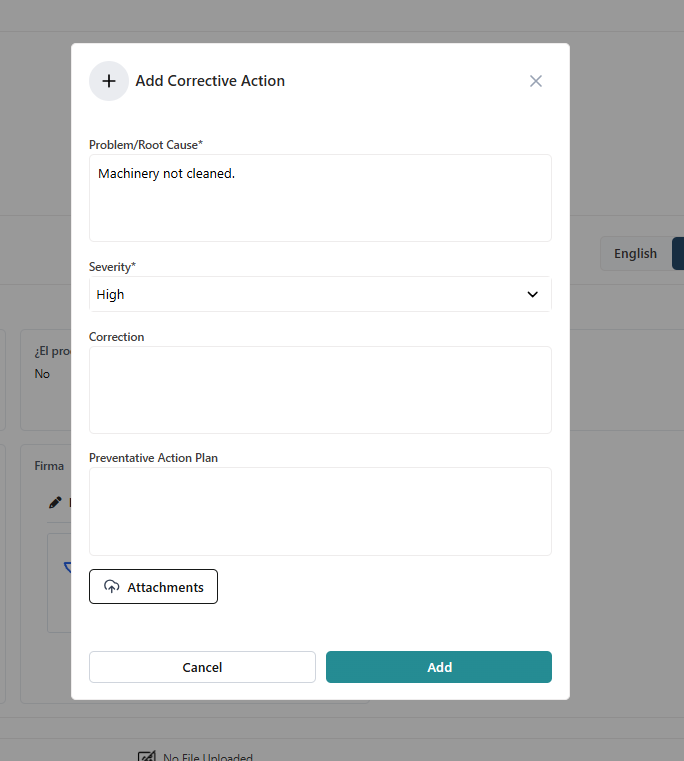
3. Add in the problem/root cause, severity, any attachments or additional information you wish to include, and then hit Add.
4. You can then add the correction and preventative action plan once you've determined the best way to prevent the issue moving forward. By hitting the three dots, you can select Edit Corrective Action to include that information.
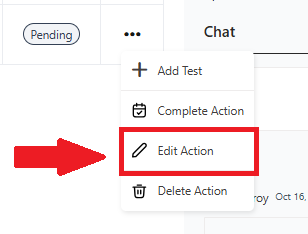
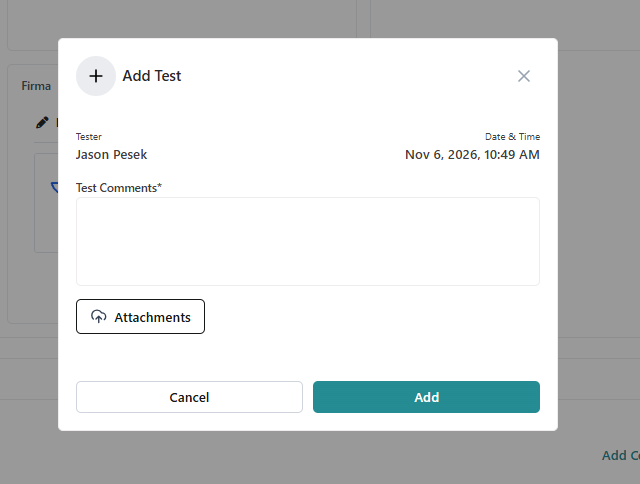
5. Users can add follow-up tests to ensure the issue is resolved moving forward. Hit the three dots on the action and select Add Test. Fill out the comments and include attachments before selecting Add to include it on the Corrective Action.
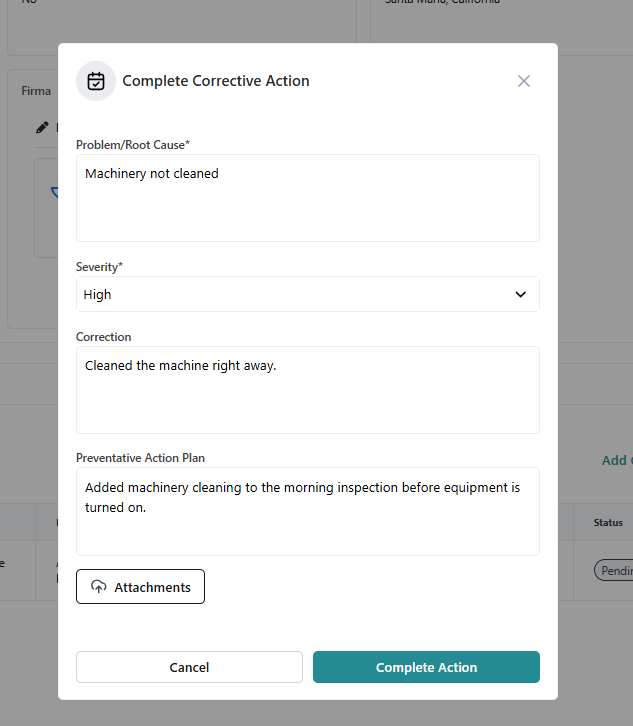
6. Once you're satisfied that the issue has been resolved, you can hit the three dots and select Complete Action. Then select Complete Action again to confirm completion.
Was this article helpful?
That’s Great!
Thank you for your feedback
Sorry! We couldn't be helpful
Thank you for your feedback
Feedback sent
We appreciate your effort and will try to fix the article