Schedules are automatically created in Loamy on both Purchase Orders and Sales Orders. Schedules ensure you know the exact location and quantity of product at any given moment, while also providing seamless traceability. To manage a schedule on an order, follow these directions:
1. Login to the Loamy platform.
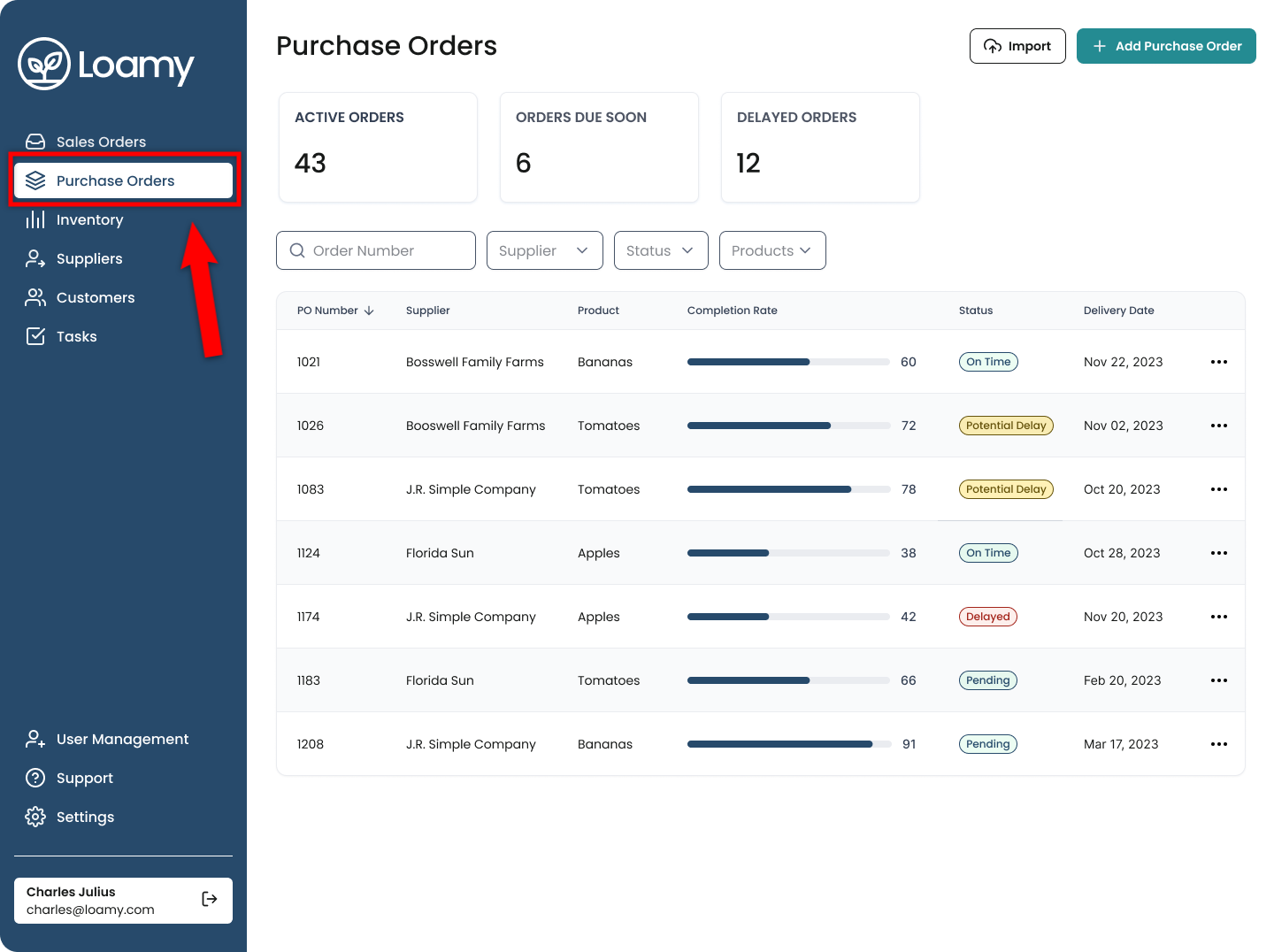
2. Go to Purchase Orders in the left-hand navigation.
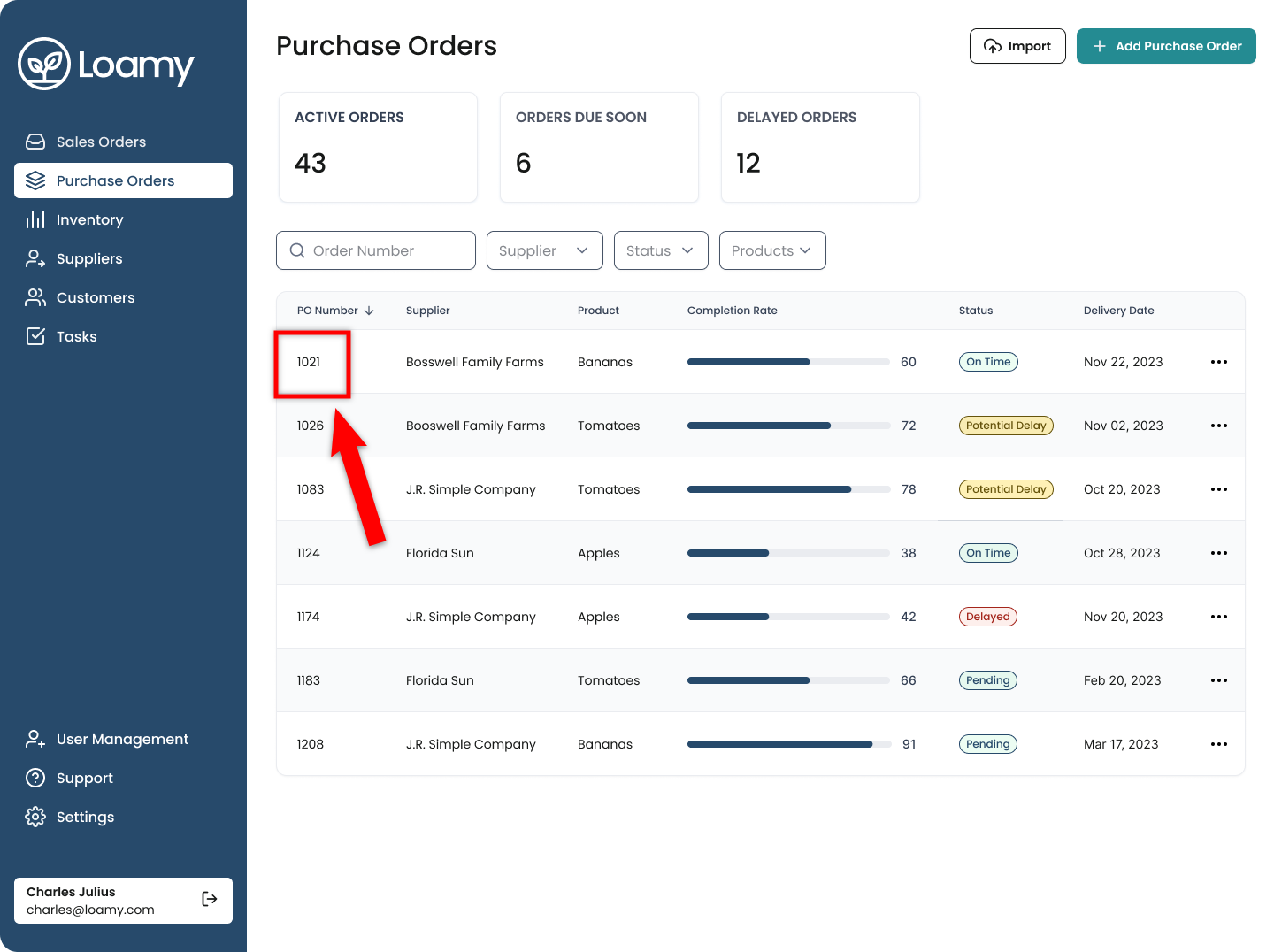
3. Select the Purchase Order you want to look at.
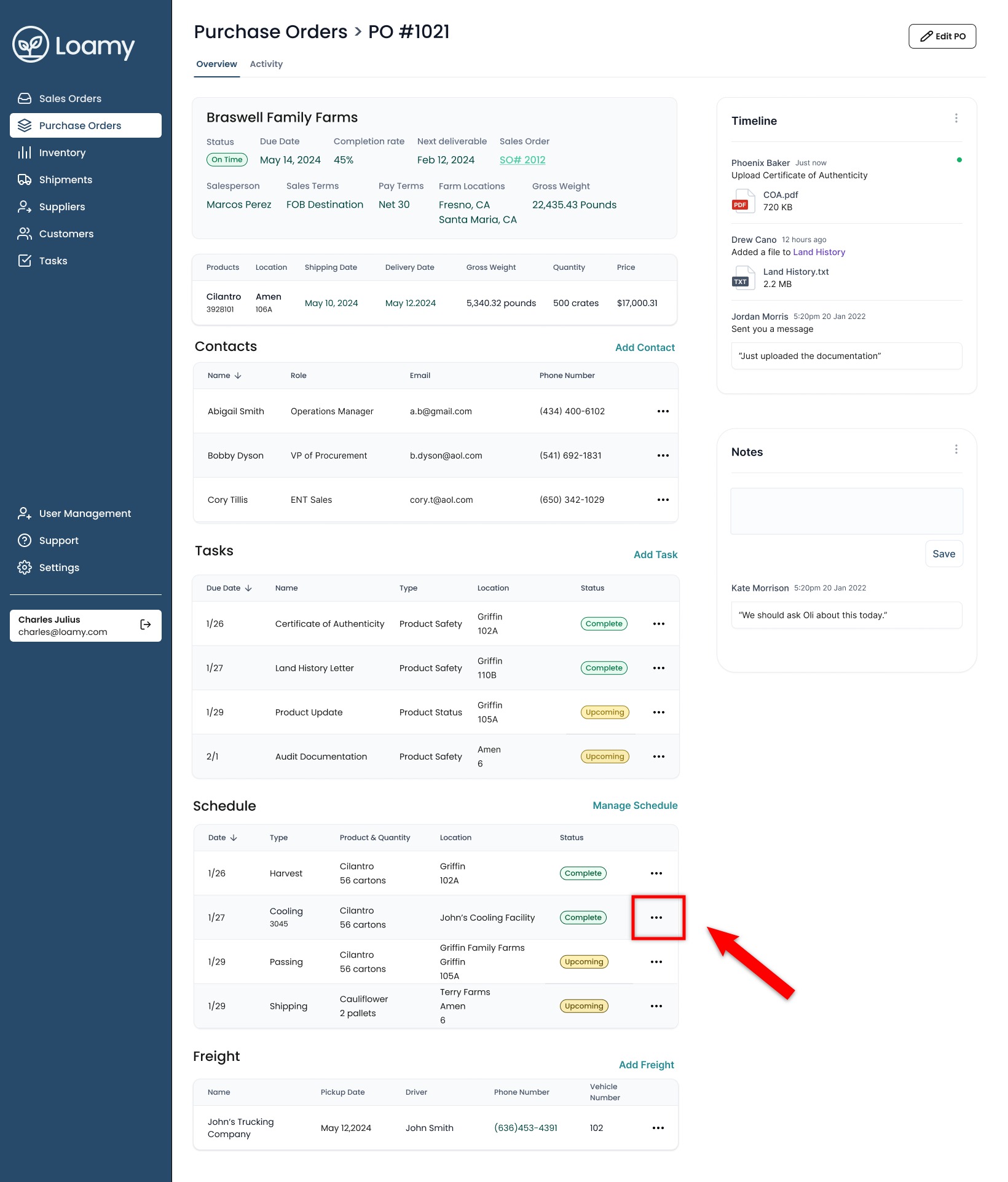
4. Scroll down until you see Schedules. From here, you can edit a schedule entry by clicking on the three dots and selecting Edit.
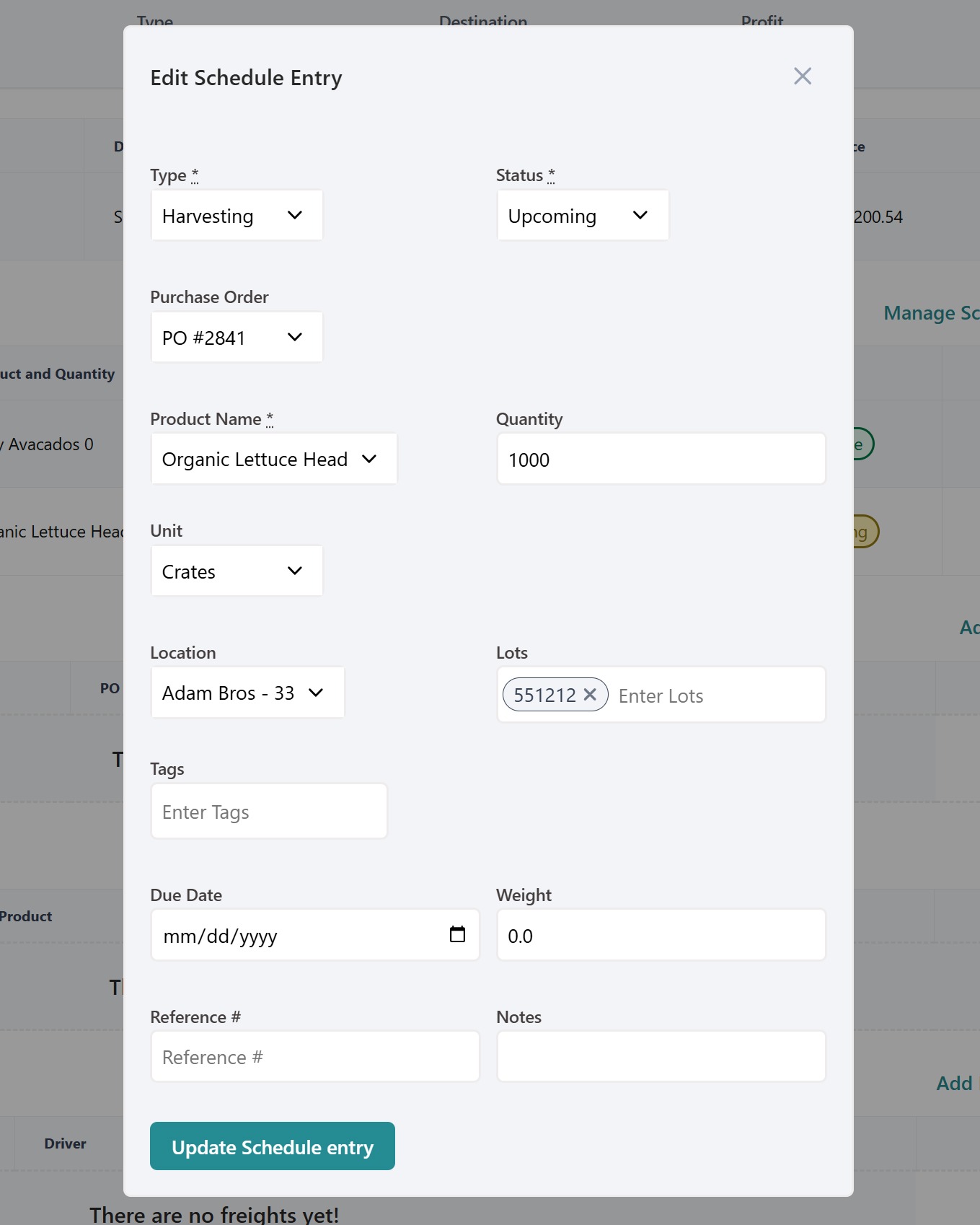
5. You can then update the location, quantity, weight, and status of that entry. Once complete, hit Save.
6. You can also adjust the entire schedule at once by clicking Manage Schedule.
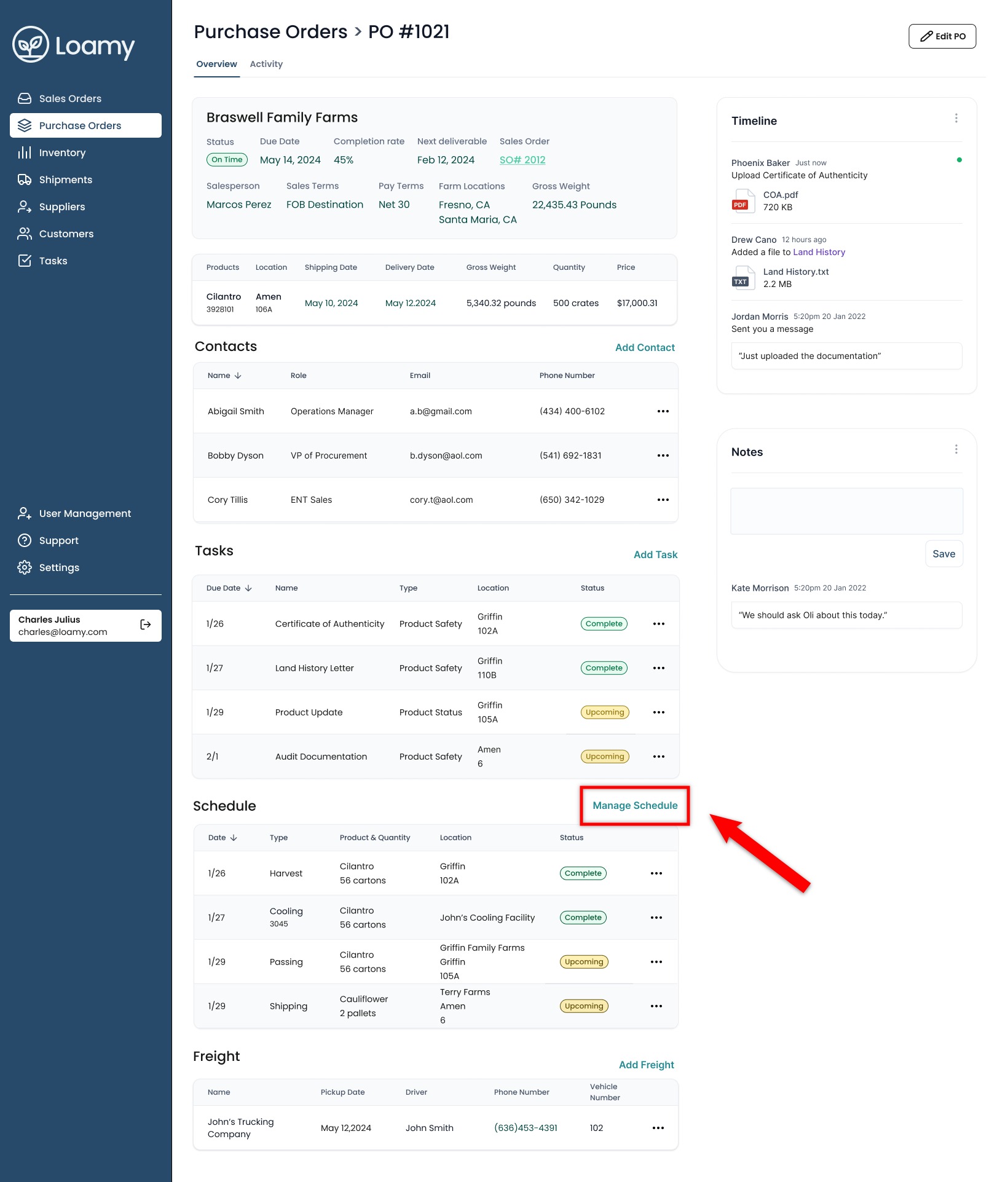
7. From here, it's easy to add additional entries and manage everything in a single place. Once done, hit Save.
Was this article helpful?
That’s Great!
Thank you for your feedback
Sorry! We couldn't be helpful
Thank you for your feedback
Feedback sent
We appreciate your effort and will try to fix the article