1. Login to the Loamy Dashboard.
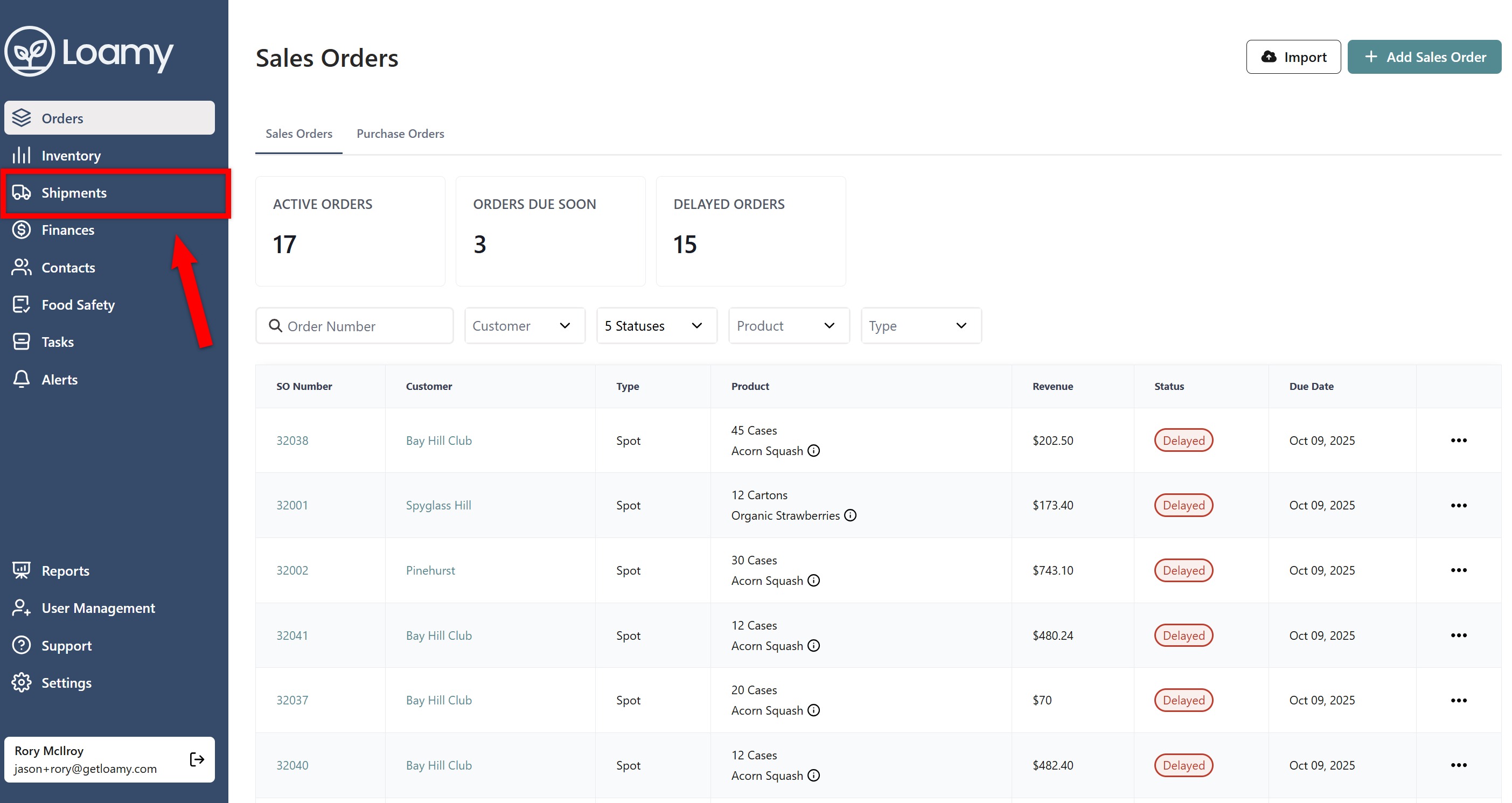
2. Go to the Shipments page by selecting it on the left-hand navigation menu.
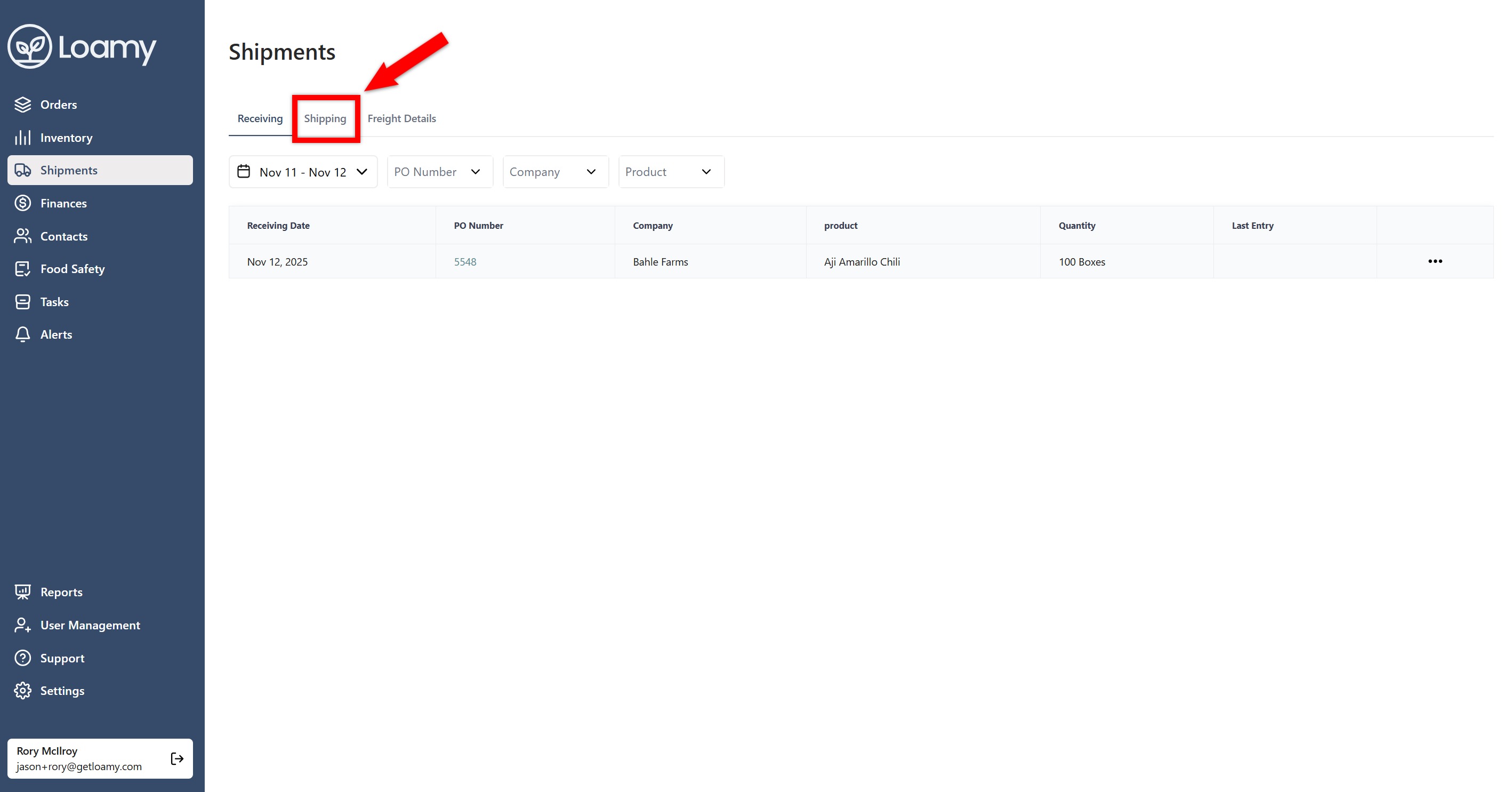
3. Select the Shipping tab.
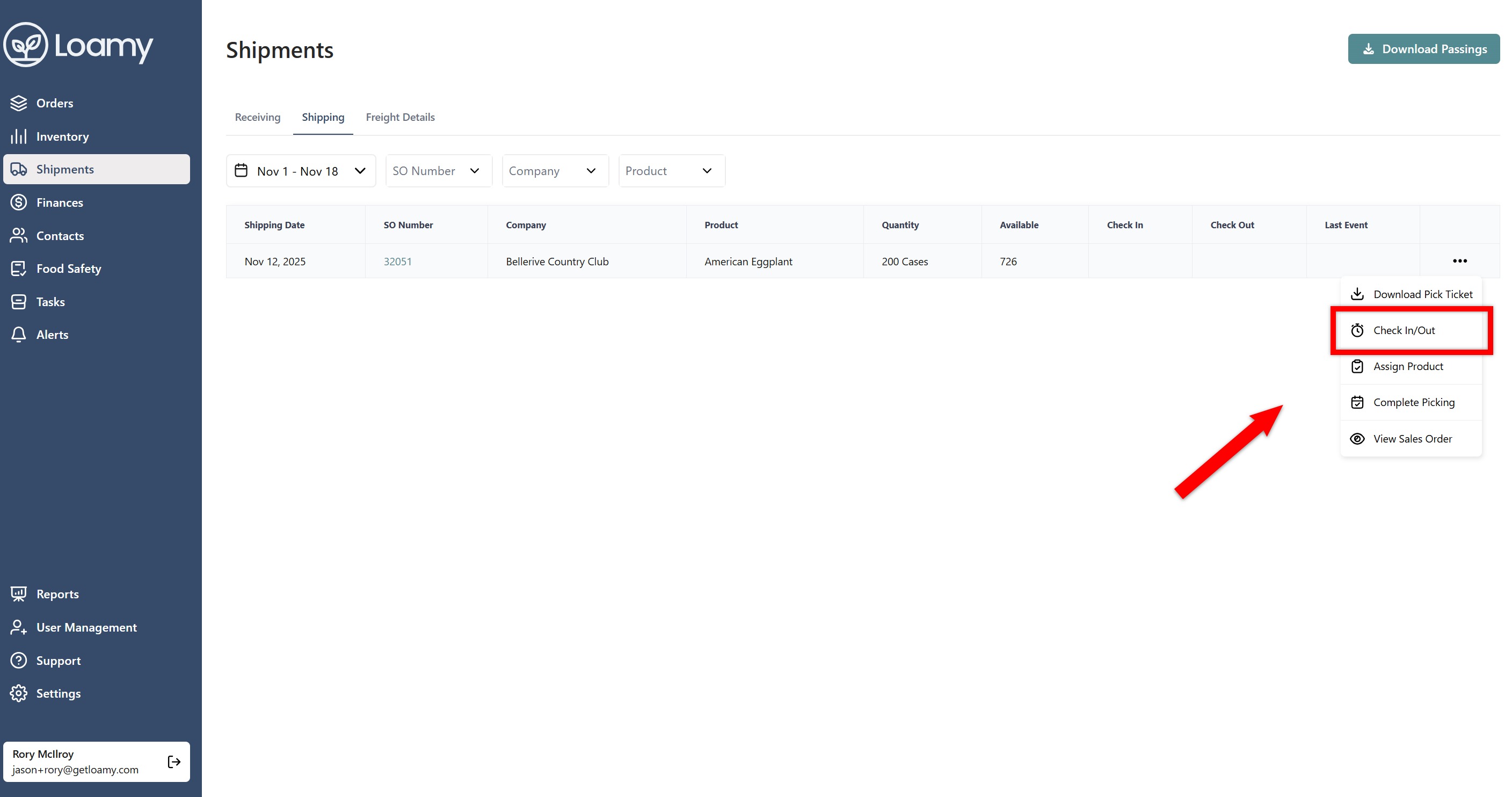
4. Select the three dots for the order you want to ship. Select Check In/Out.
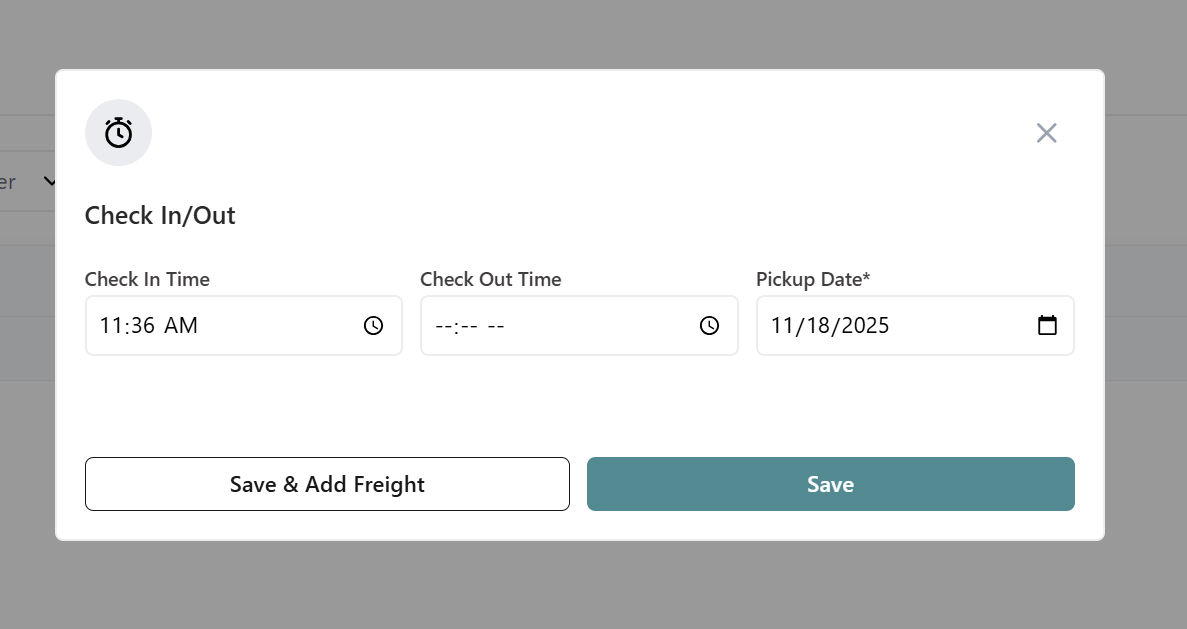
5. Confirm the check in time and add freight for the order if you haven't done so by selecting Save & Add Freight. Add in the freight information and hit Save.
6. Then go back to the three dot menu and select Assign Product. Note: You can download the pick ticket from here as well if you wish to do so ahead of time.
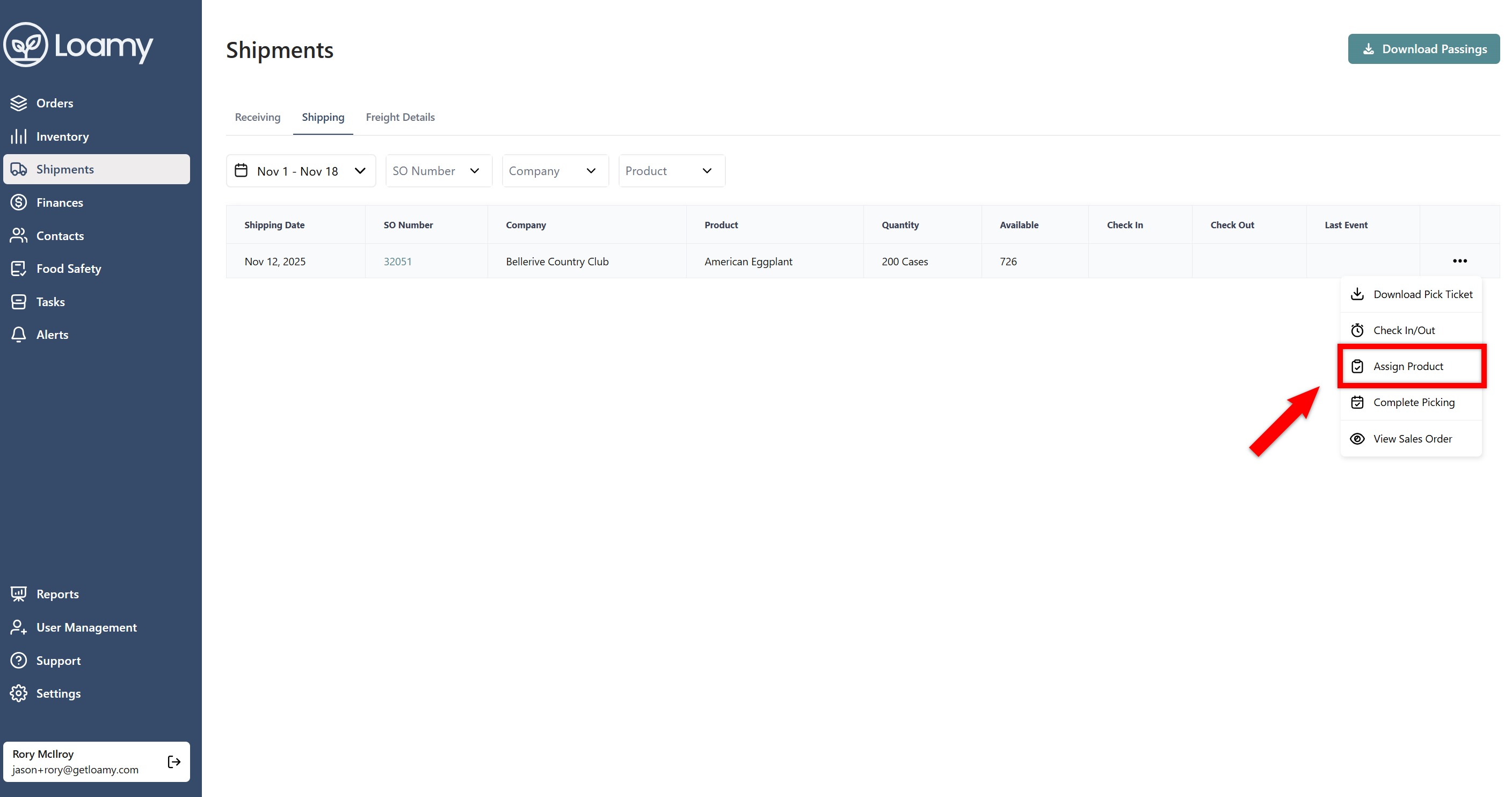
7. Select the Lots or Purchase Orders you want to pull product from. Then specify how much you want to pull from each PO or Lot. Select Assign Products.
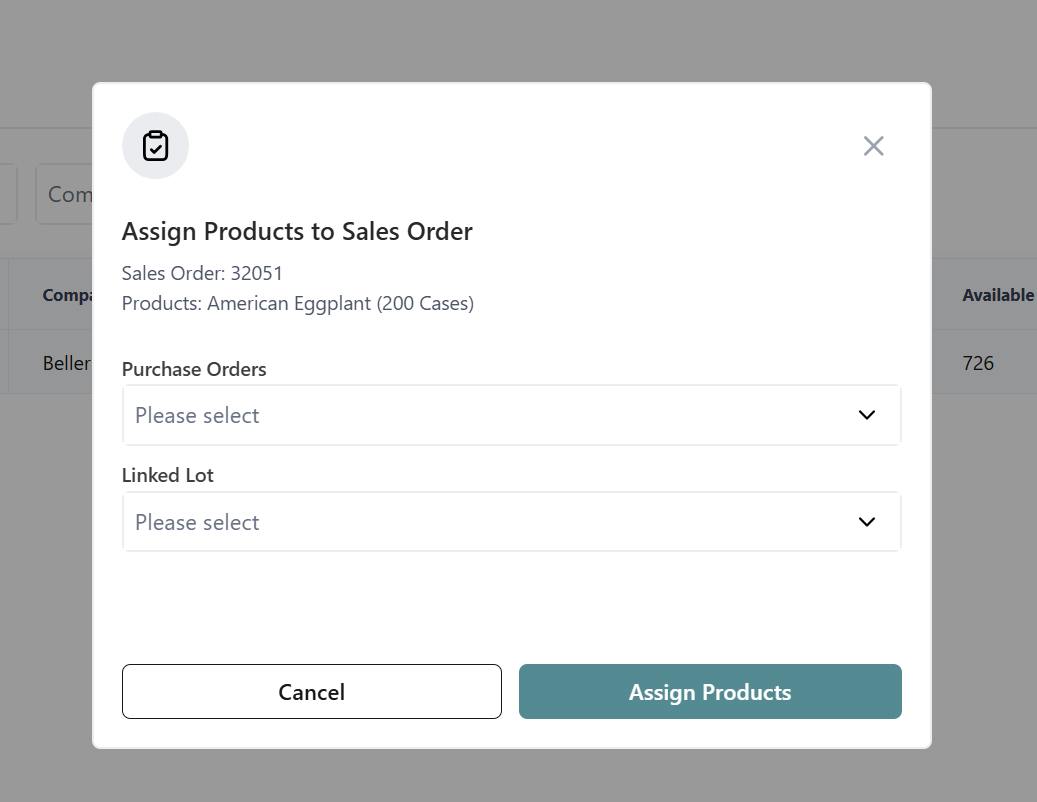
8. Select the three dots for that order and click Complete Picking.
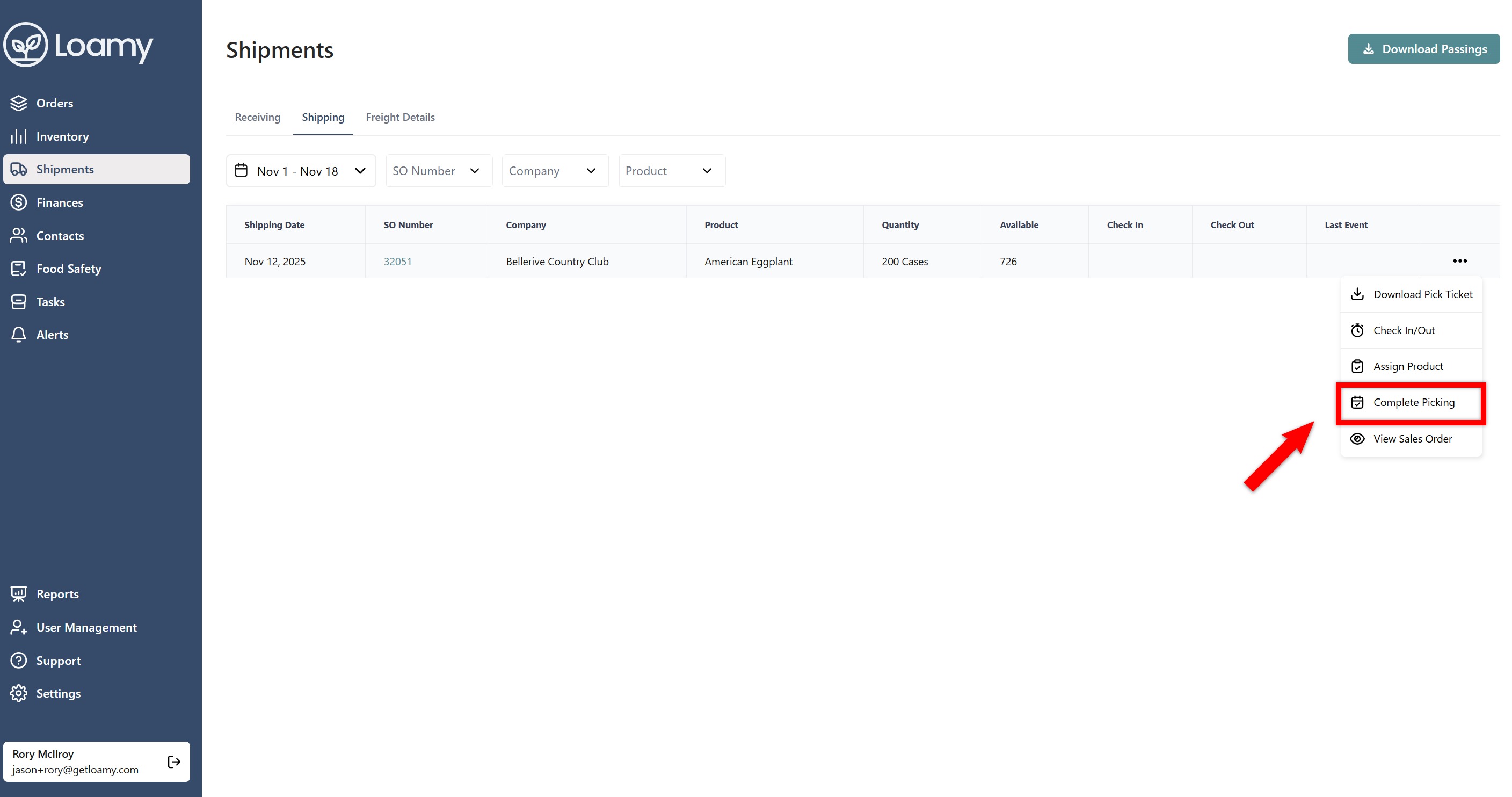
9. Confirm the quantity and weight and select Complete Event.
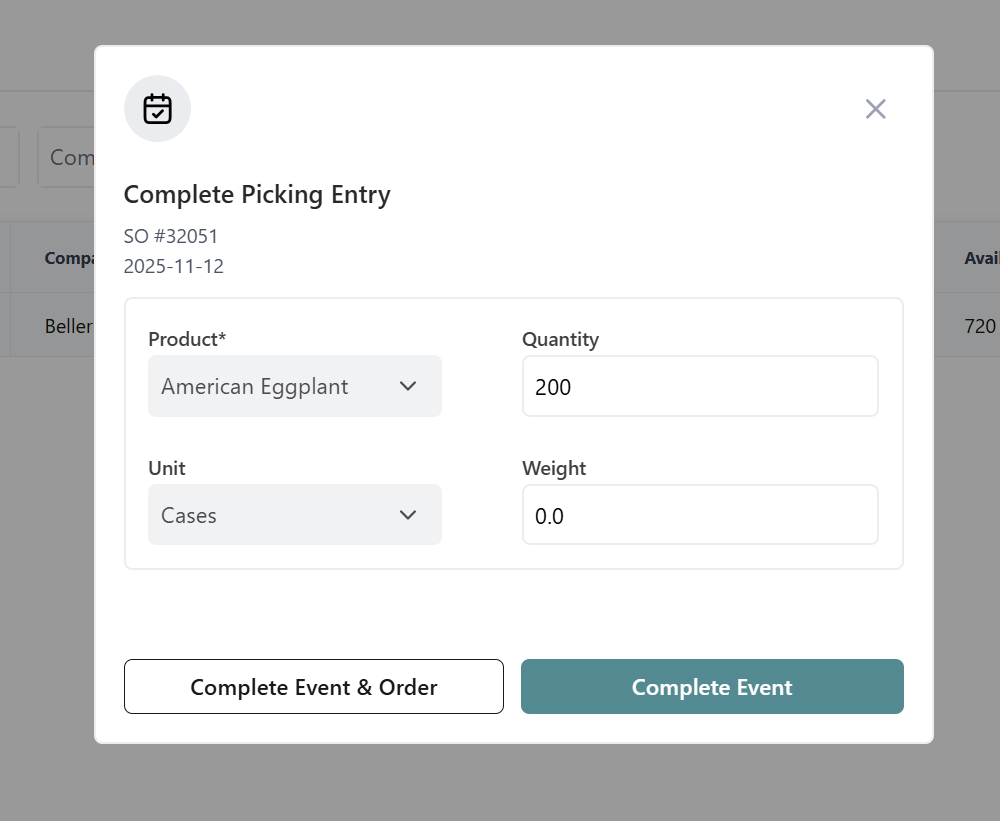
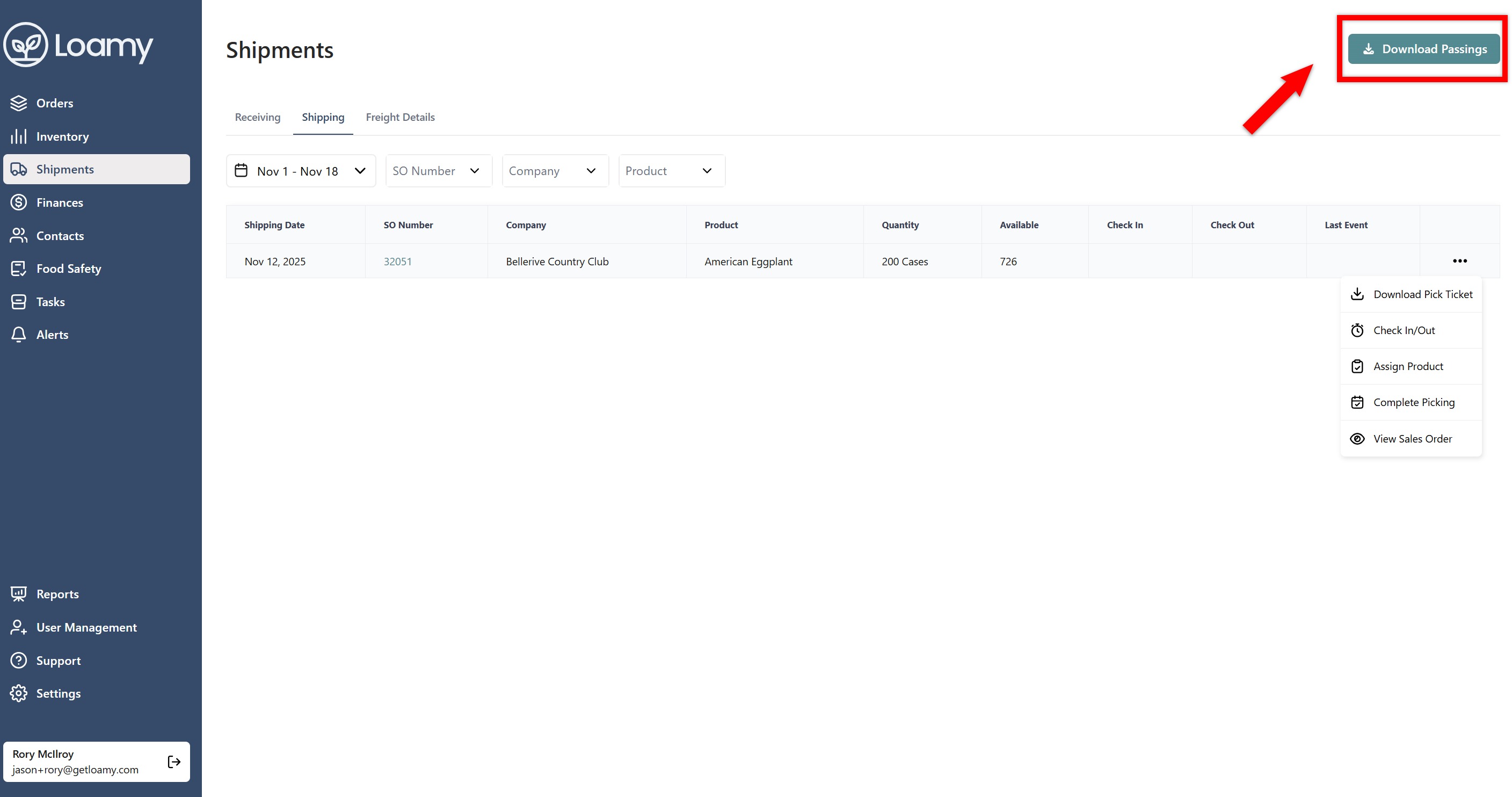
10. You can then complete the remaining events on the schedule by following the same process. At the end of the day, you can download all the passings together by selecting Download Passings in the top right-hand corner.
Was this article helpful?
That’s Great!
Thank you for your feedback
Sorry! We couldn't be helpful
Thank you for your feedback
Feedback sent
We appreciate your effort and will try to fix the article